How to Generate Your First Invoice with Alfaa Using an Online Invoice Generator
By Alfaa Team
Stay in the loop
Get finance tips delivered to your inbox.
If you are a freelancer, consultant, agency owner, or small business, sending professional invoices quickly is essential for healthy cash flow.
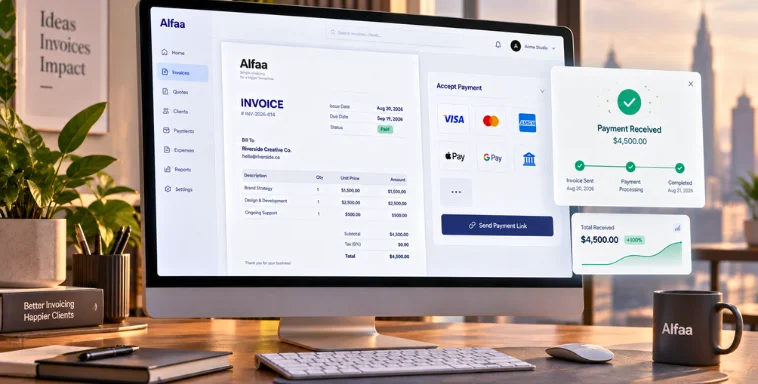
Alfaa is an online invoice generator and invoice management software for small businesses designed to simplify billing. Whether you are creating one invoice or managing recurring billing, it helps you automate and organize the entire process.
By the end of this guide, you will know exactly how to generate invoice documents, send them to clients, and track payments using Alfaa’s invoice automation software.
What You Need Before Creating an Invoice
Before creating your first invoice, make sure the basics are set up correctly.
Set up your Alfaa account. Registration takes only a few minutes.
Add your business details, including company name, address, contact information, and tax registration if applicable. This ensures every invoice looks professional and compliant.
Optionally, you can pre-add clients, products, or services. This speeds up invoicing later, especially if you bill regularly.
Using professional invoicing software from the start ensures consistency across every invoice you create.
Step 1: Log In to Your Alfaa Dashboard
Log in to your Alfaa account through the web platform.
Once inside, you will see your main dashboard. This is your control center. From here, you can:
View recent invoices
Track paid and pending invoices
Create new invoices
The dashboard gives you a clear overview of your billing activity, making it more than just an invoice generator. It functions as full invoice management software.
Step 2: Navigate to Create Invoice
From the dashboard, click on the Create Invoice button.
This opens the invoice creation screen where you can select a template and begin entering details. Alfaa's templates are clean and structured, helping you maintain a professional appearance without manual formatting.
Using an online invoice generator like Alfaa eliminates the need for spreadsheets or document editing tools.
Step 3: Enter Your Client Information
You can either select an existing client or add a new one.
If adding a new client, include:
Client name
Email address
Billing address
Optional tax details
Saving client information helps you generate invoice documents faster in the future. This is especially useful for consultants and invoicing for digital marketing agencies managing multiple accounts.
Organize client names clearly to avoid billing mistakes.
Step 4: Add Line Items
Next, add your products or services as line items.
For each line item, enter:
Description of service or product
Quantity
Rate or unit price
Alfaa automatically calculates totals, reducing manual errors.
If you previously saved services or products, you can select them instantly instead of retyping details. This is where invoice automation software saves significant time.
For clarity, keep descriptions specific. Instead of writing "Marketing Services," specify "Monthly Social Media Management for May 2026."
Step 5: Set Invoice Terms
Define your payment terms clearly.
You can set:
Due date
Deposit requirements
Early payment discounts
Late fee policies
Currency selection
Tax settings such as GST or VAT
Adding notes or terms and conditions helps reduce disputes.
Invoice management software for small businesses ensures these settings remain consistent across invoices.
Step 6: Review Your Invoice
Before sending, review the invoice carefully.
Check:
Client details
Line items
Tax calculations
Total amount
Formatting
Most errors happen due to incorrect quantities or missed tax settings. Automated invoicing software minimizes these risks, but a final review ensures accuracy.
Step 7: Send or Download Your Invoice
Once satisfied, you can:
Send the invoice directly via email from Alfaa
Download it as a PDF
Share it manually if needed
Send invoice from your mailbox directly through Alfaa
After sending, Alfaa allows you to track invoice status in real time. You can see whether the invoice is viewed, paid, pending, or overdue.
This tracking capability makes it more than just a simple invoice generator. It acts as a complete billing software for small businesses.
Bonus: Use Alfaa’s Automation Features
Once you are comfortable generating invoices, explore automation features.
Recurring invoices allow you to bill retainers automatically using recurring invoice software.
Auto reminders notify clients about upcoming or overdue payments.
Analytics and reporting give you visibility into revenue trends and outstanding payments.
These features position Alfaa as one of the best invoice automation software solutions for growing consultants and agencies.
Conclusion
You now know how to generate invoice documents step by step using Alfaa. From entering client details to sending and tracking payments, the process is simple and structured.
Using a professional online invoice generator backed by invoice automation software helps you save time, reduce errors, and improve cash flow.
Ready to streamline your billing?
Frequently Asked Questions
An online invoice generator is a web-based tool that allows you to create, customize, send, and download professional invoices without using spreadsheets or manual templates. It simplifies billing and helps businesses invoice clients quickly.
Creating your first invoice with Alfaa typically involves these steps: Sign up for an account. Add your business details. Create or select a client. Add products or services with pricing. Review the invoice. Send or download it. Alfaa is designed to let users complete this process in just a few minutes.
A professional invoice should include: Your business name and contact details Client information Invoice number Invoice date and due date Description of products or services Quantity and pricing Taxes (if applicable) Total amount due Payment terms and notes
Yes. Alfaa lets you customize invoice titles, add line items, apply taxes, include payment terms and notes, and generate professional invoices that reflect your business branding.
Yes. Alfaa is designed for freelancers, consultants, agencies, contractors, and small businesses that need a simple way to create, send, and manage professional invoices.
Yes. After creating an invoice, you can send it directly to your client through Alfaa. Depending on your plan, you can also send invoices using Gmail, Google Workspace, your own custom email domain, or Alfaa's built-in email system.
Yes. Alfaa allows you to preview and download professional PDF invoices, making them easy to share, print, or keep for your business records.
Yes. You can automate recurring invoices for clients who are billed weekly, monthly, quarterly, or on custom schedules, reducing repetitive manual work.
Yes. Alfaa includes client management features that let you save customer details, organize client records, and quickly create invoices for repeat customers.
Yes. Alfaa supports multi-currency invoicing, making it easy to bill international clients in their preferred currency.

Olivia Bennett
Content Writer @ Alfaa
Olivia is a content writer at Alfaa who specializes in invoicing, small business, and productivity topics. She enjoys simplifying complex ideas into clear, practical insights that help business owners save time, get paid faster, and stay organized.